smartphone
Android phone and tablet
Works on any Android 5 or newer. Since CF media is not on the Play Store yet, you install it from the app file (APK), and it takes a minute.
- On your phone, open cfmedia.com.br and tap Download APK.
- Tap the downloaded file. If you see “For your security, your phone is not allowed…”, tap Settings, turn on Allow from this source and go back.
- Tap Install and then Open.
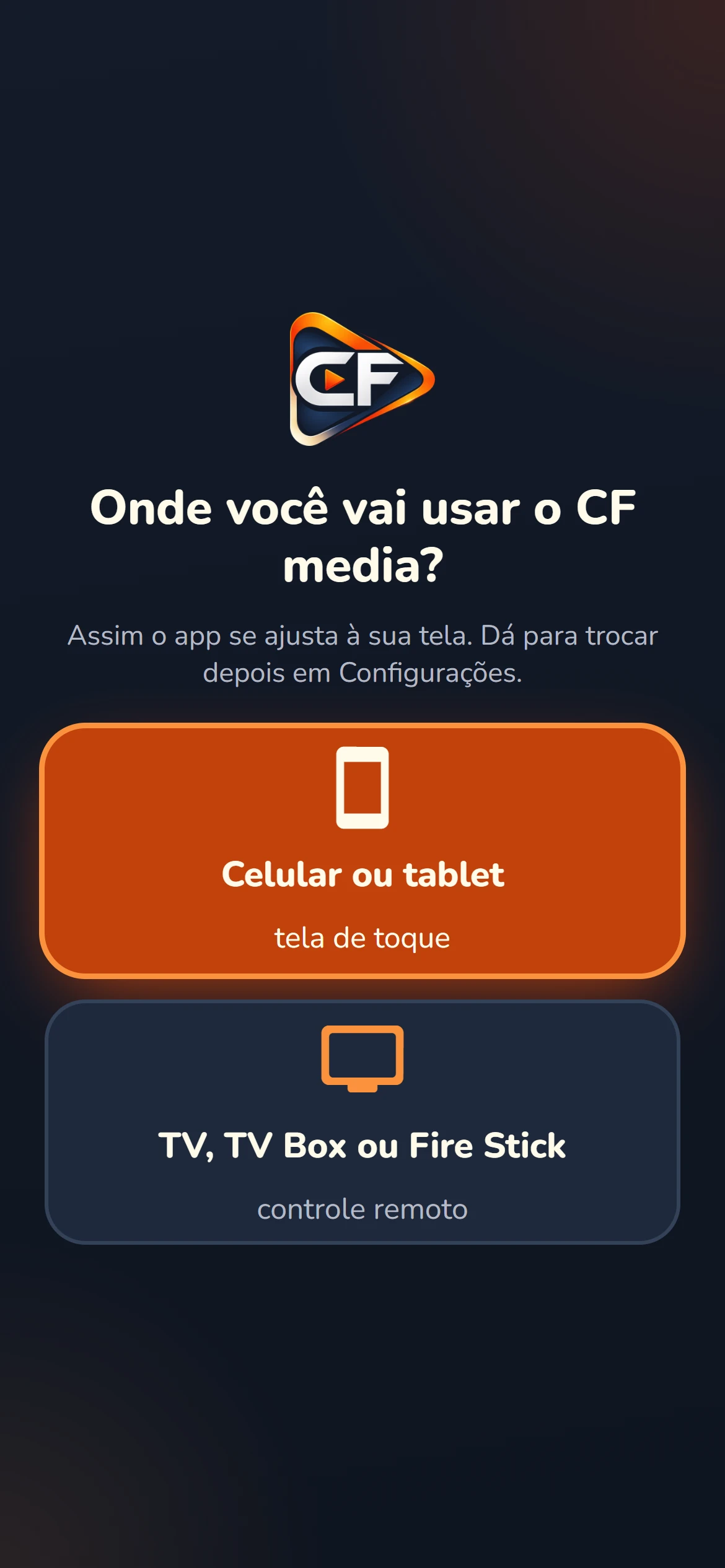
- On the first screen, choose Phone or tablet. Then follow the first use.
phone_iphone
iPhone and iPad
On iPhone and iPad, CF media works through Safari and becomes an app on the Home Screen: its own icon, full screen and no Safari bar. No App Store needed.
- Open Safari and go to app.cfmedia.com.br. A notice at the bottom offers How to install, with an arrow showing every tap.
- Tap Share. On newer iPhone versions, it is in the ••• menu next to the address.
- Choose Add to Home Screen and tap Add.
- Open CF media from the new icon on the Home Screen and follow the first use.
tv
Android TV, Google TV and Mi Stick
For TVs with Android TV or Google TV (Sony, TCL, Philips…), Mi Stick, Mi Box and Chromecast with Google TV.
- On the TV, open the Play Store, search for Downloader (orange icon, by AFTVnews) and install it.
- Open Downloader and accept the permissions it asks for.
- In the address field, type cfmedia.com.br/apk and press Go.
- When the TV says it cannot install unknown apps, go to Settings and enable the permission for Downloader. Go back and tap Install.
- Open CF media and choose TV, TV box or Fire Stick. Then the first use.
tips_and_updatesThe permission path varies a little from brand to brand. It is usually under Settings → Apps → Security & restrictions → Unknown sources.
cast
Fire TV Stick
Works on every Fire TV Stick (Lite, 4K, 4K Max) and on Fire TV Cube.
- On the home screen, go to Find → Search, type Downloader and install the app (orange icon).
- Go to Settings → My Fire TV → Developer options → Install unknown apps and turn on Downloader.
- No “Developer options”? Go to Settings → My Fire TV → About and press OK 7 times on the device name. The option appears.
- Open Downloader, type cfmedia.com.br/apk and press Go. Tap Install.
- You can delete the installation file when Downloader asks. Open CF media and choose TV, TV box or Fire Stick.
settings_input_hdmi
TV box
TV boxes with “phone-style” Android, the ones whose home screen is full of icons, install just like a phone.
- Over the internet: open the TV box browser, go to cfmedia.com.br/apk and open the downloaded file.
- With a USB drive: on the computer, download the APK on the Download page and copy it to the USB drive. On the TV box, open the file with the file manager.
- Allow the installation when asked and tap Install. Open CF media and choose TV, TV box or Fire Stick.
touch_app
First use
The same on every device. You only do this once.
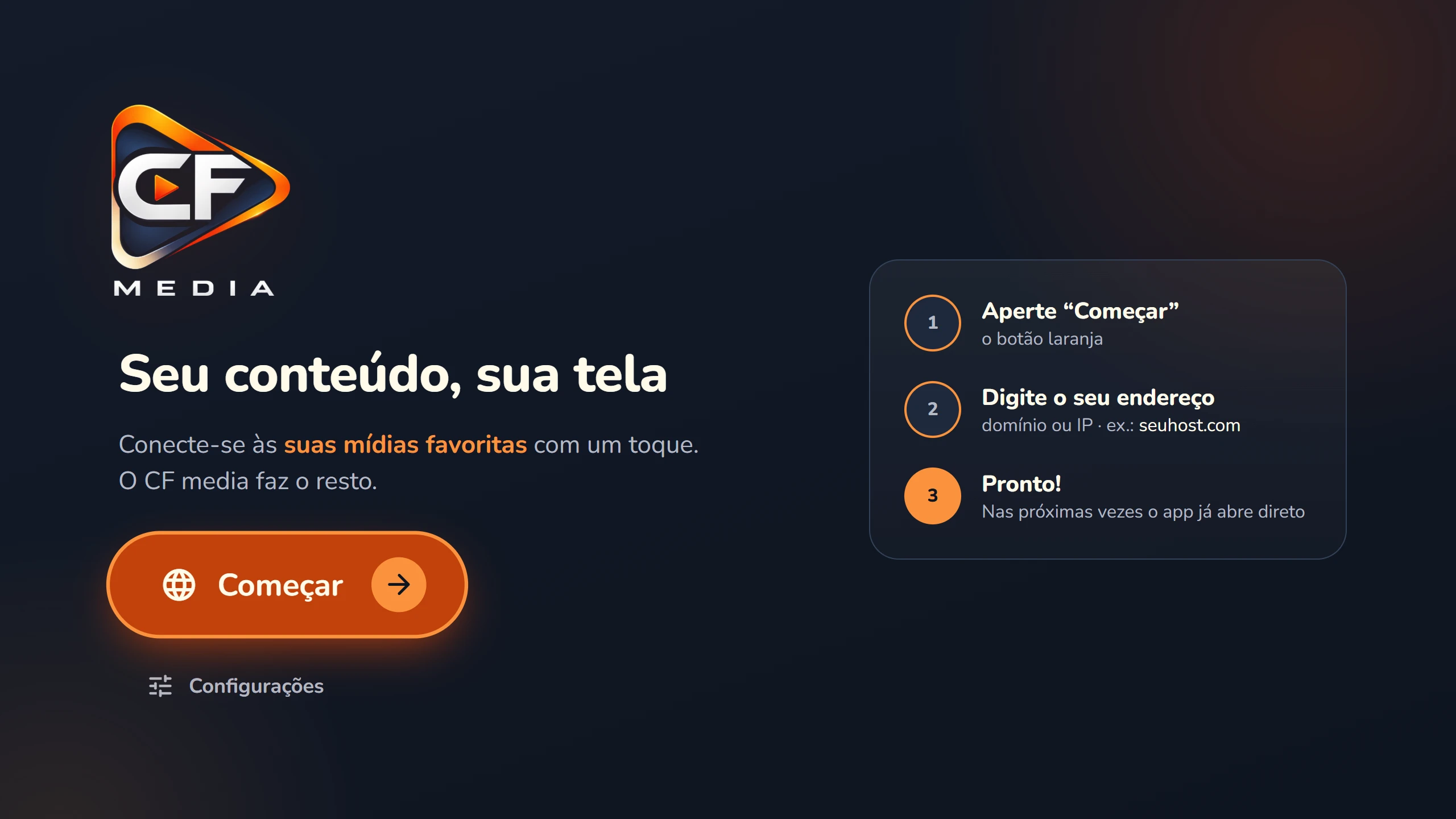
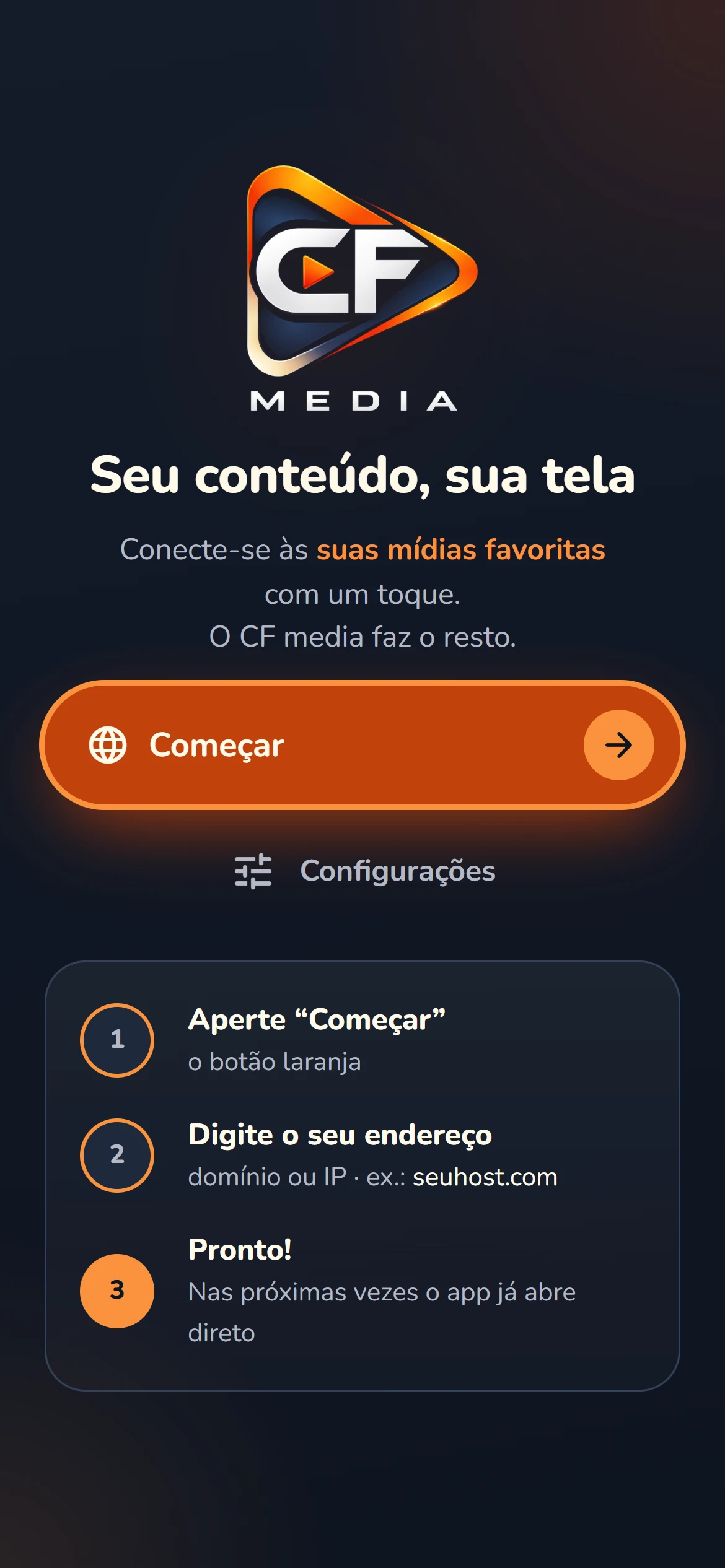
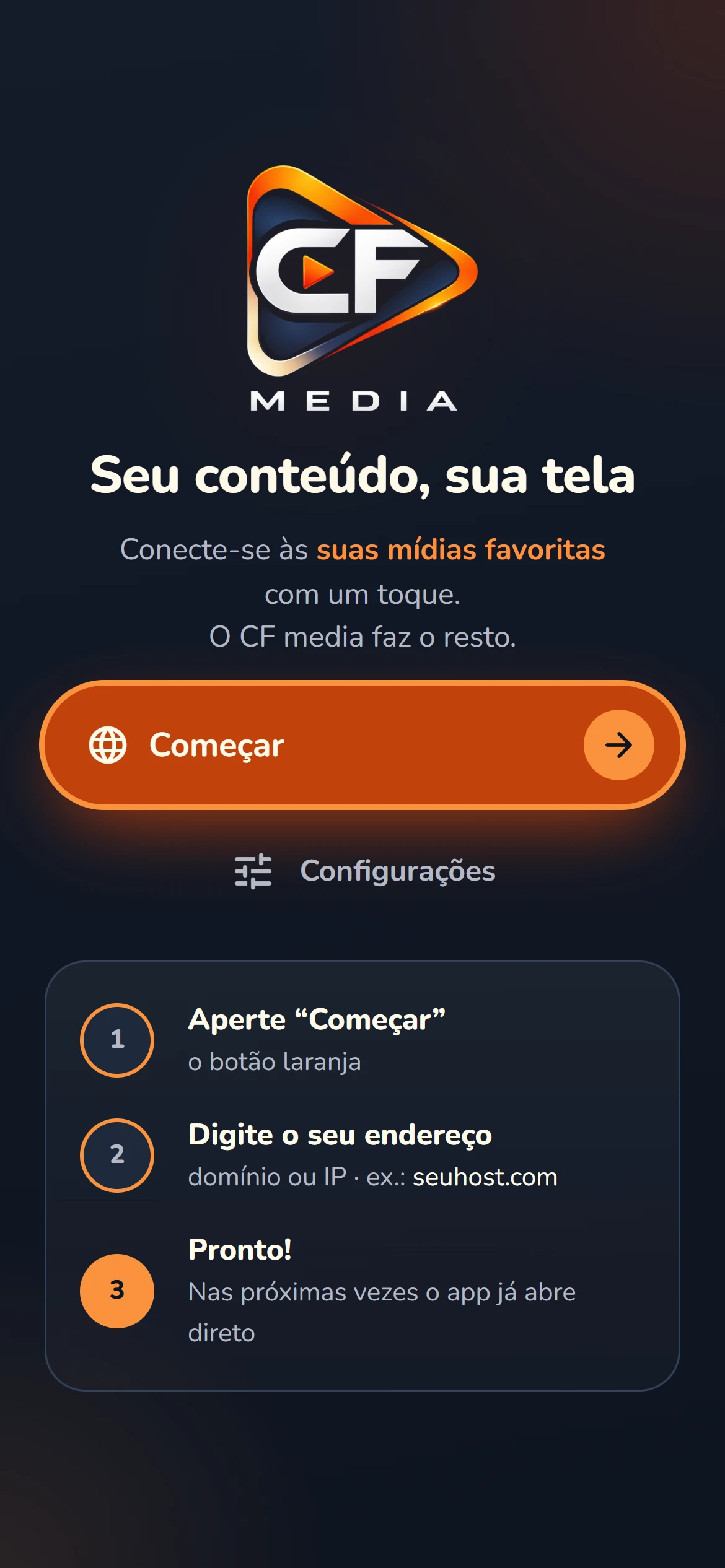
- Press Start, the orange button.
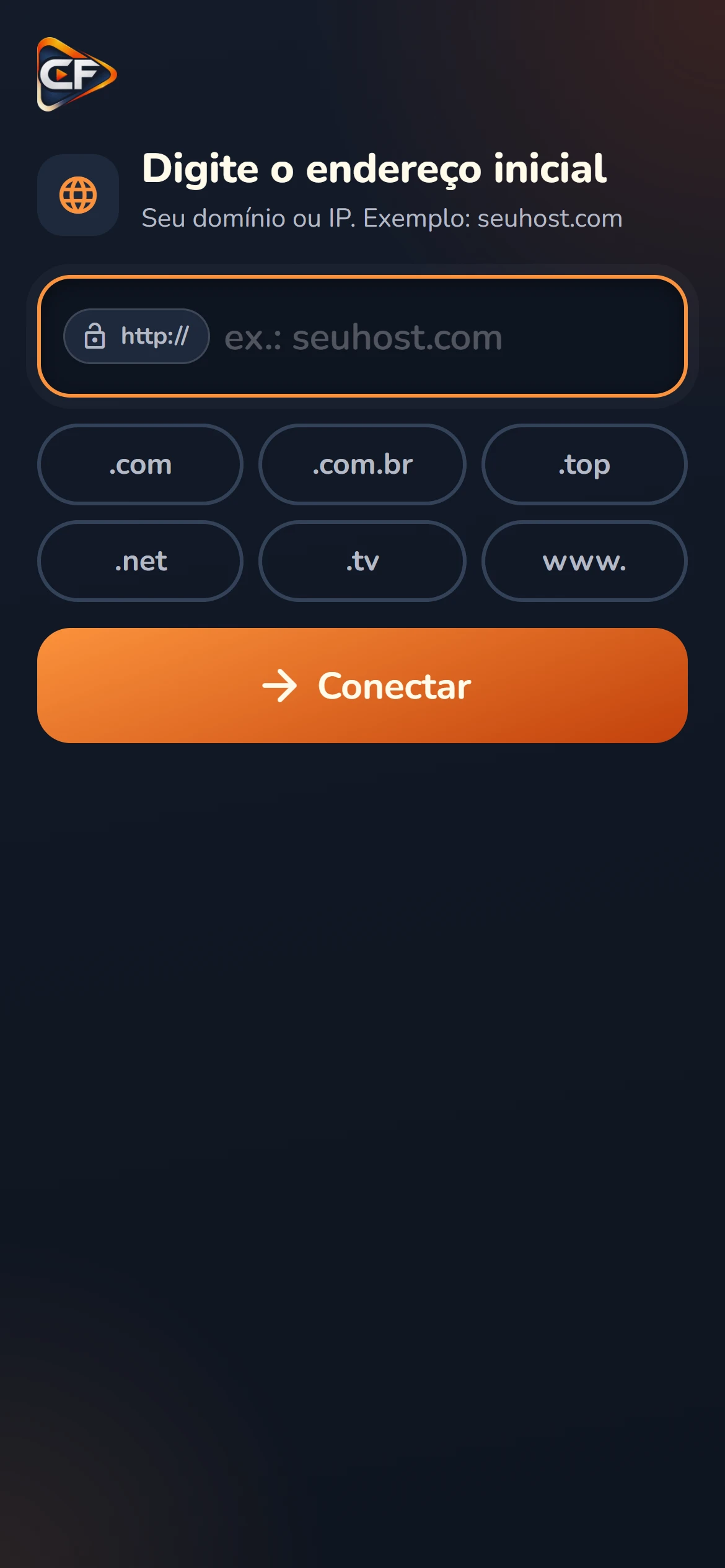
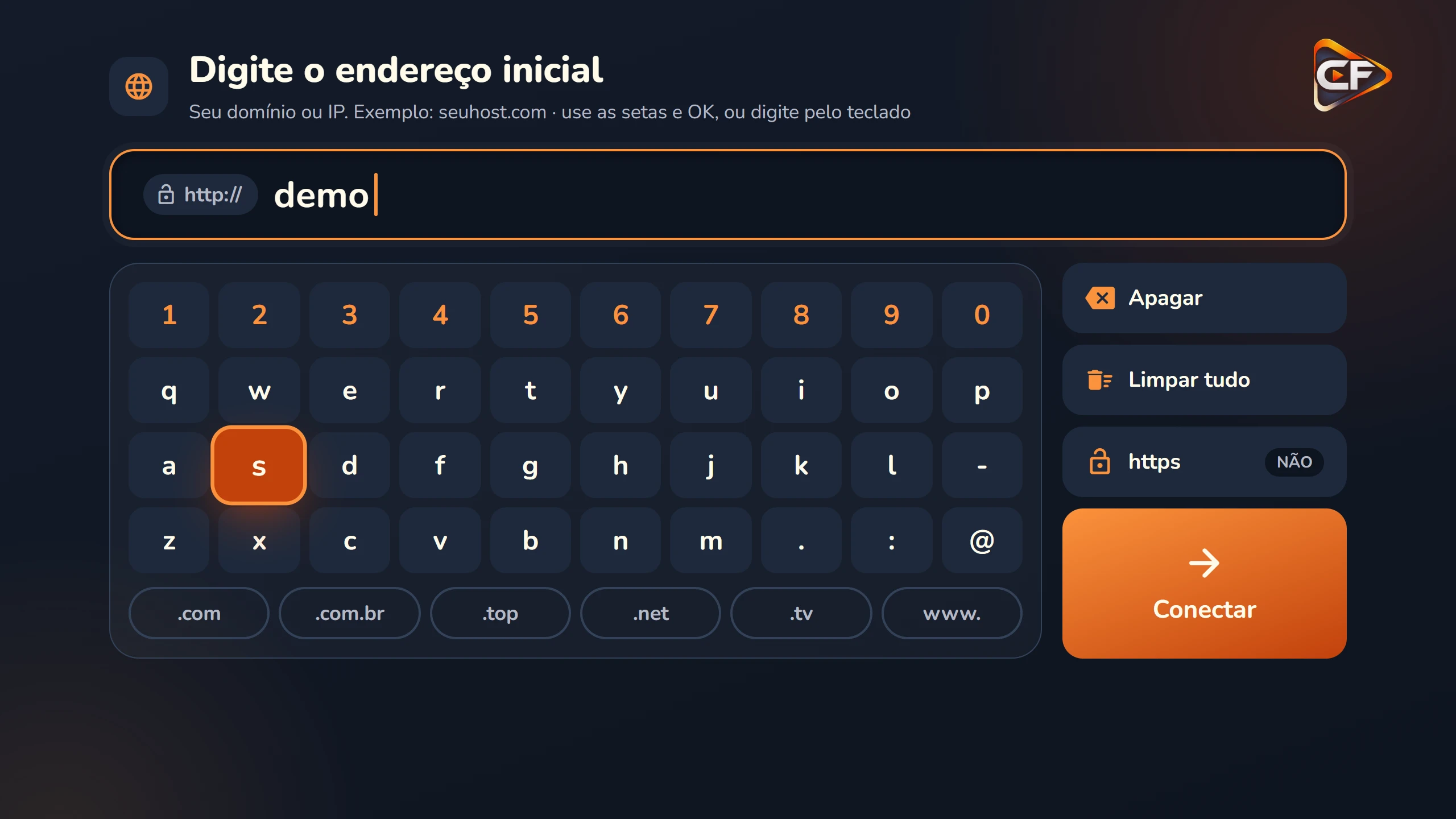
- Type the address: the domain (like yourhost.com) or the IP (like 192.168.0.10:8080). On the TV, use the arrows and OK on the on-screen keyboard, or a real keyboard.
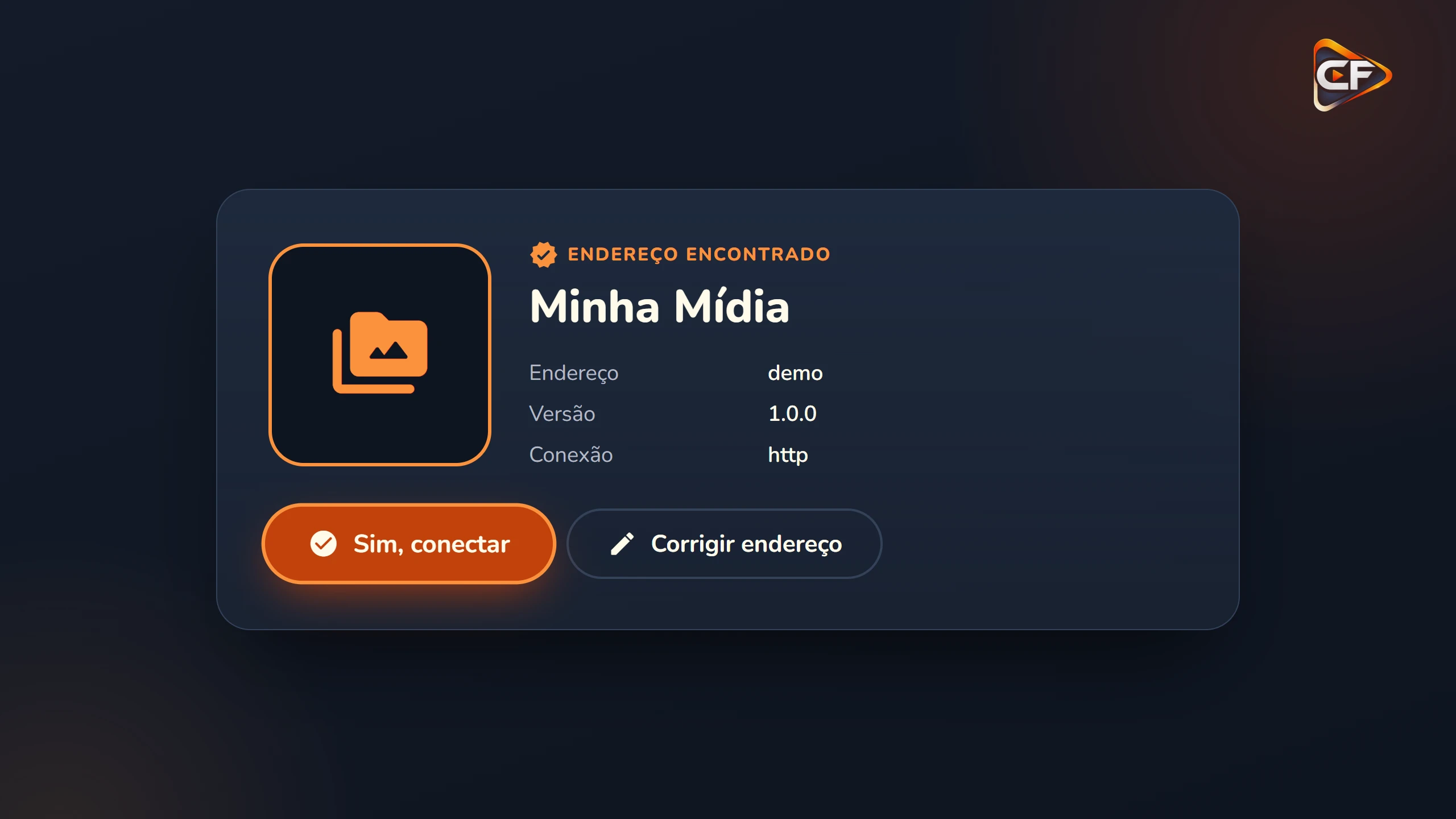
- Press Connect. The app shows what it found: name, version and connection.
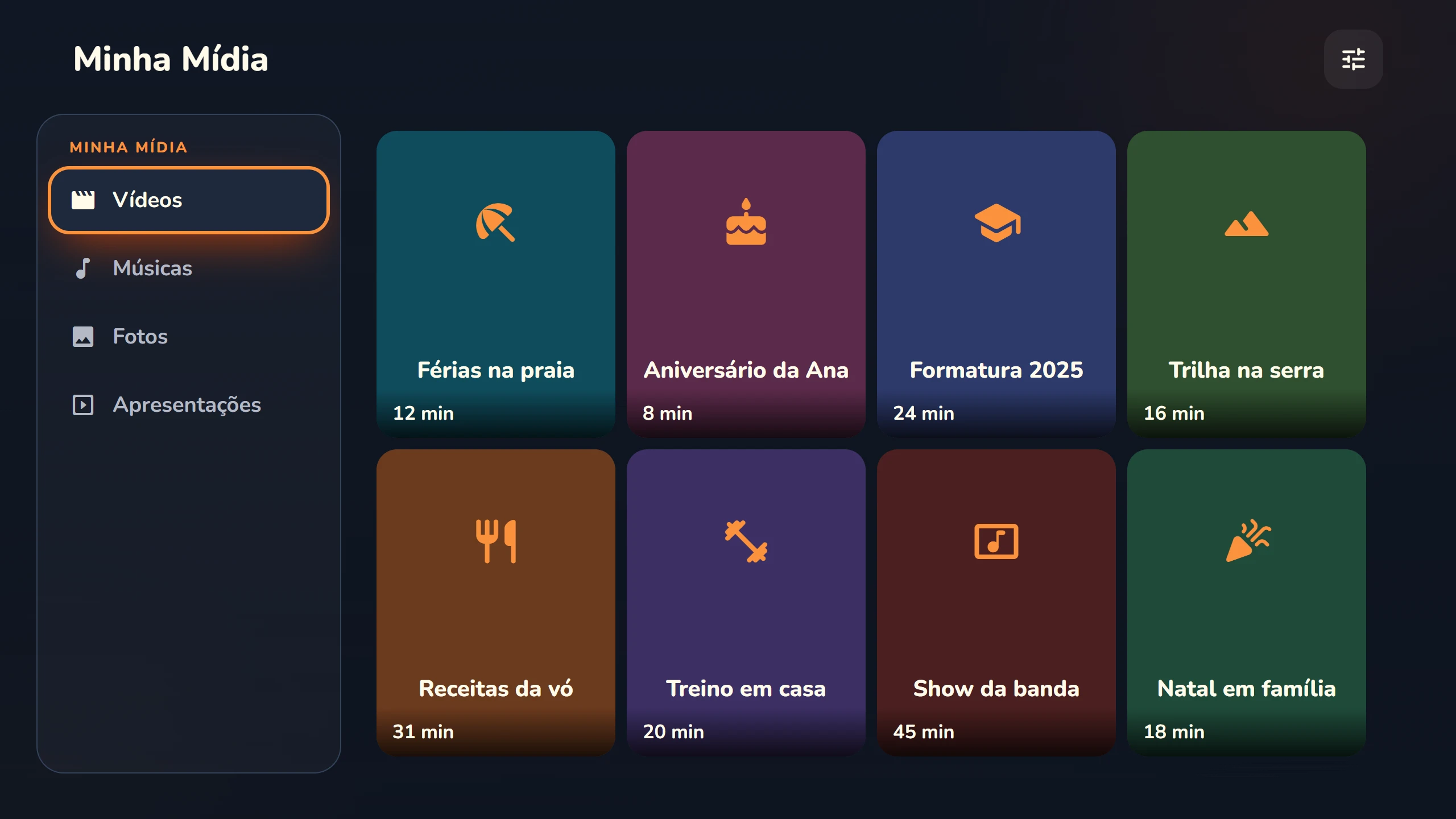
- Press Yes, connect. From then on, the app opens directly.
settings_remote
Remote control and shortcuts
| Button | What it does |
|---|
| Arrows and OK | Move around the screens and select |
| Back | Goes back one screen. In the player, hides the controls and then exits |
| Hold Back (1 s) | Opens CF media Settings, from anywhere |
| Menu | Opens Settings |
| In the player: ◀ ▶ | Skip back and forward 10 seconds (repeated presses add up) |
| In the player: ⏪ ⏩ | Skip back and forward 30 seconds |
| On the phone: double-tap the sides | Skip back and forward 10 seconds |
swap_horiz
Change the address
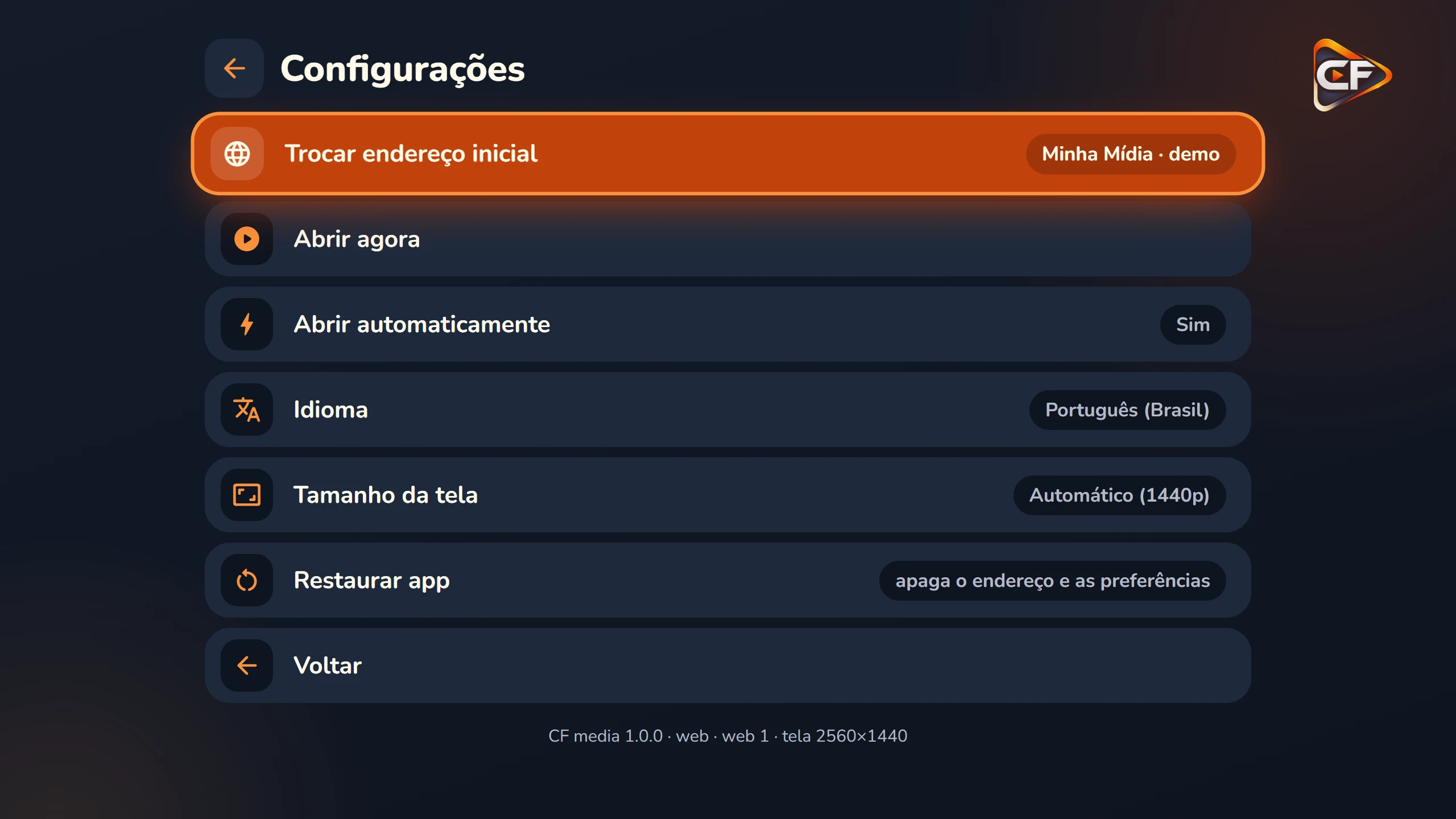
- Open Settings: on the TV, hold Back or press Menu. On the phone, tap the settings icon in the corner of the screen.
- Choose Change start address, type the new one and confirm.
- Want to start over? Reset app erases the address and preferences (press OK twice to confirm).
tune
Language and screen size
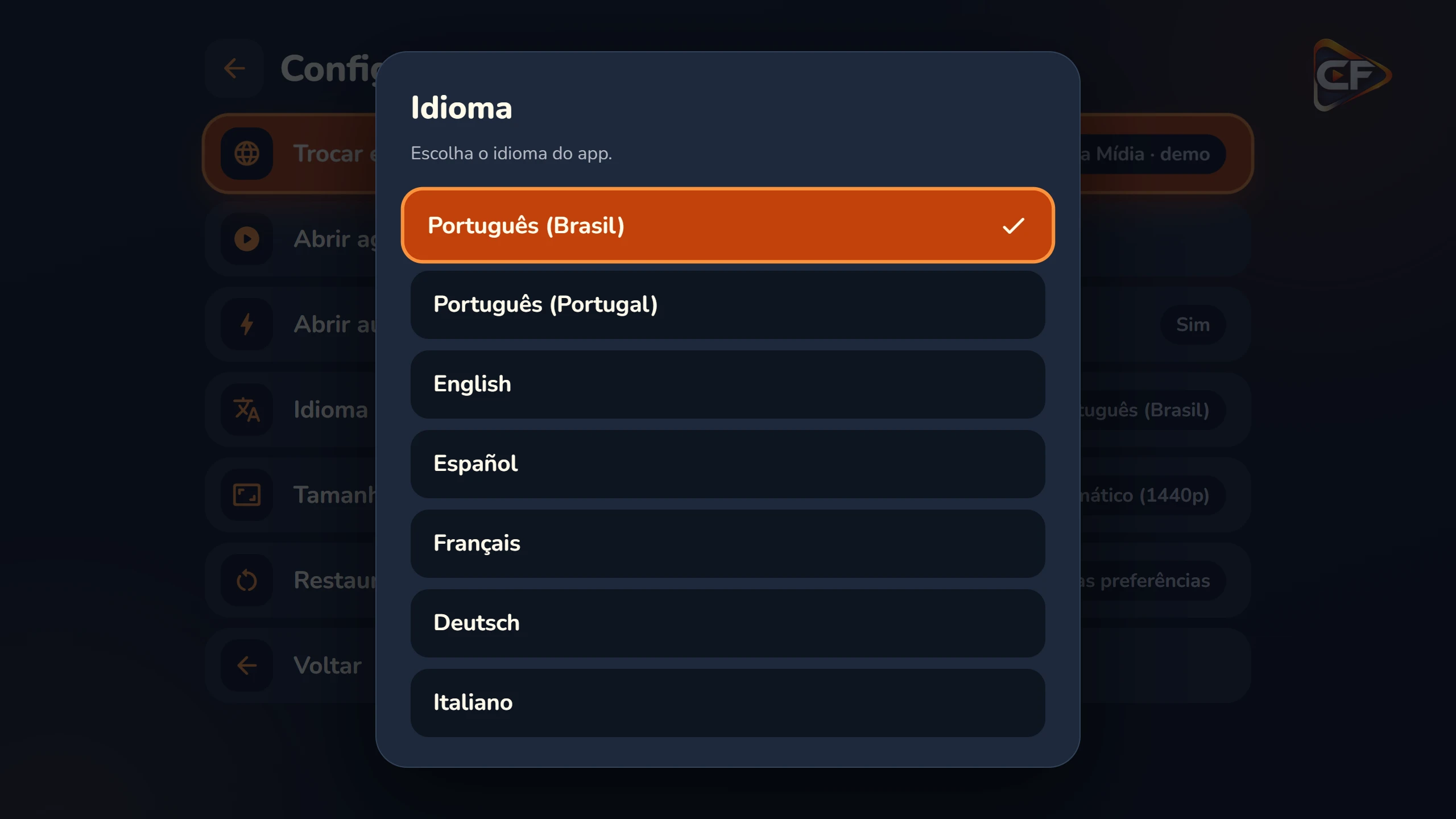
Language: CF media uses the device language. To change it, go to Settings → Language: it switches instantly.
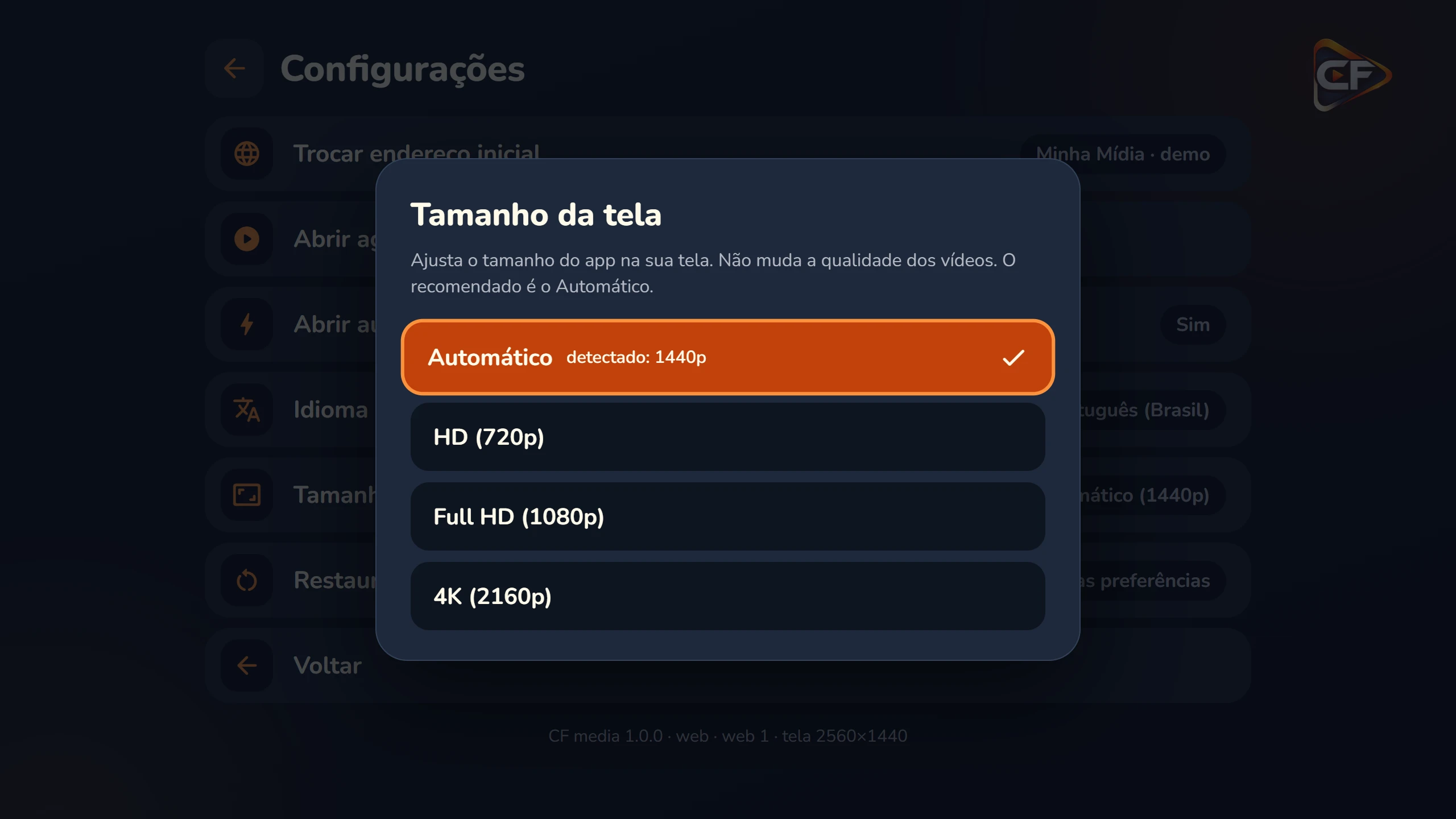
Screen size: automatic mode already shows the resolution it detected. If you choose another size, the app asks whether to keep it and, if you don’t answer within 15 seconds, it reverts by itself, so you are never stuck on a screen you can’t read.
build
Troubleshooting
| What you see | What to do |
|---|
| “Could not connect” | Check that the address is spelled correctly and that the device’s internet is working. |
| “No start page found at this address” | The address responded, but it is not a server set up for CF media. Check the address with whoever runs the server. |
| “This server is currently unavailable” | The server is down. Try again later or contact whoever runs it. |
| The video won’t play | The format may not be supported by the device. MP4 (H.264 + AAC) works on all of them. |
| The screen looks cut off or small | In Settings → Screen size, choose Automatic. |
| The app always opens in the same place | That’s expected: it remembers the address. To change it, see Change the address. |